|
iQue Forecyt® Reference Guide (Version 10.0)
|
Add New Layer

The icon at the end of the Design tabs allows you to add an annotation layer that you can copy to other plates. This is where you can customize well types. When you add (or delete) an annotation layer, it is added or deleted from the layers from all plates in an experiment. When you click on the icon the Add Annotation Layer window opens.
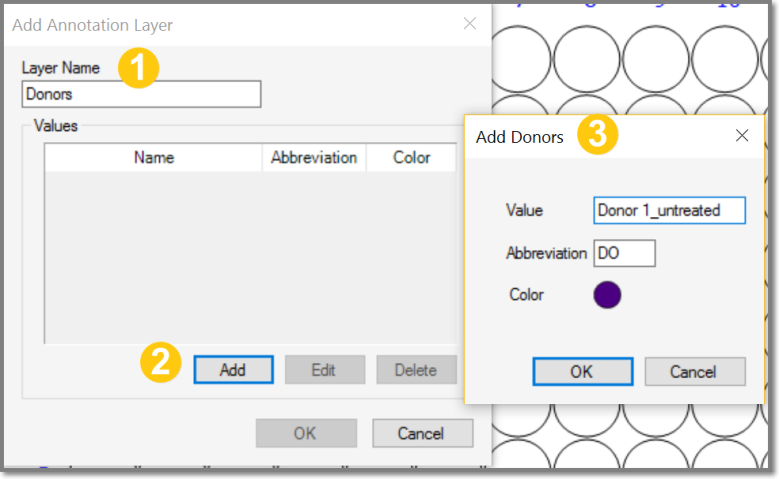
Type a name in the Layer Name box (1). In this example it’s Donors. Click Add (2). This will open a new window with the name of the layer your created.
In the Add Donors (3) Value box, type in the well label. You can let iQue Forecyt® generate different colors, or you can change the color by clicking on the colored circle to Select Color. In this example, the value is Donor 1_untreated. You can continue to Add values and assign colors. Click OK when you are finished adding well annotations.
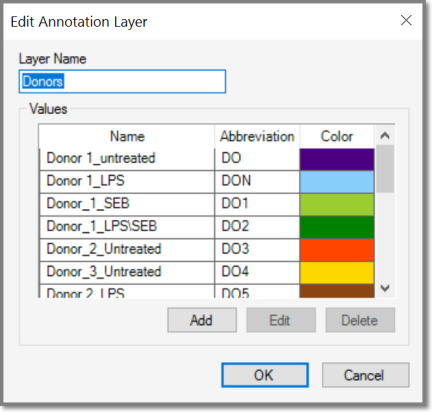
The following screenshot illustrates how you might build a new layer called Donors. Once you have all the well annotations for your experiment. Select a group of wells and click on the annotation.
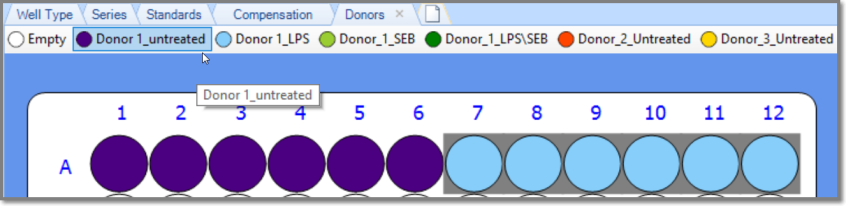
In this example wells A 1-6 are Donor 1_untreated and wells A 7-12 are Donor 1_LPS.
You can delete the entire layer by clicking on the miniscule X in the tab, shown in the following screenshot.

You can change colors or add more well annotations by clicking on the down arrow at the end of the list, as shown in the magnifying circle. This opens a menu of all your current well annotations.

Clicking Customize opens the Edit Annotation Layer window. You can Add new values or, select any value and click Edit to change names, abbreviations or colors.